
Tiled PDF printing · step-by-step assembly tutorial
How to Print Poster on Multiple Pages: Full Assembly Guide
Updated Oct 2026
A complete guide on how to print a poster on multiple pages at home: download your tiled PDF, print at strictly 100% actual scale, trim alignment margins, and tape sheets seamlessly. Follow these calibrated steps to turn desktop printer pages into stunning wall art with zero commercial print costs.
1. Print the Tiled PDF at 100% Actual Size
When you want to print a poster across multiple sheets, printer scaling is the single most critical factor. Desktop printing utilities default to automatic adjustments that distort multi-page alignments.
- Print at 100% Scale or "Actual Size": Never use "Fit to Paper" or "Shrink to Printable Area", which shrinks each sheet by 3% to 7% and ruins alignment.
- Match Your Loaded Paper Size: Ensure the paper standard selected in your tool (ISO A4 or ANSI US Letter) exactly matches the paper tray in your hardware.
- Print Single-Sided: Multi-page murals require single-sided output so the reverse side is accessible for seamless taping.
- Always Run One Test Sheet First: Print page A1 first to confirm dot density, color saturation, and margin orientation before running a large 12-page batch.
2. Understand the Multi-Sheet Grid Layout
Every sheet in a tiled poster PDF features a dedicated coordinate label in the unprinted margin. This ensures you can lay out your mural correctly on a table or floor before touching scissors or blades.
How coordinate labels work
- A1, B1, C1, D1 constitute Row 1 (top edge of poster).
- A2, B2, C2, D2 constitute Row 2 (middle section).
- A3, B3, C3, D3 constitute Row 3 (bottom edge).
Coordinate indexing logic
- Letters (A, B, C...) represent horizontal columns from left to right.
- Numbers (1, 2, 3...) represent vertical rows from top to bottom.
Recommended assembly sequence
Start from the top-left corner and finish each horizontal row completely before proceeding to the next row:
A1 → B1 → C1 → D1
A2 → B2 → C2 → D2
A3 → B3 → C3 → D3
Pro-Tip: Spread all printed pages out on a clean flat floor to verify that no sheets were skipped and ink is dry.
3. Precision Trimming: The "Right and Bottom Only" Rule
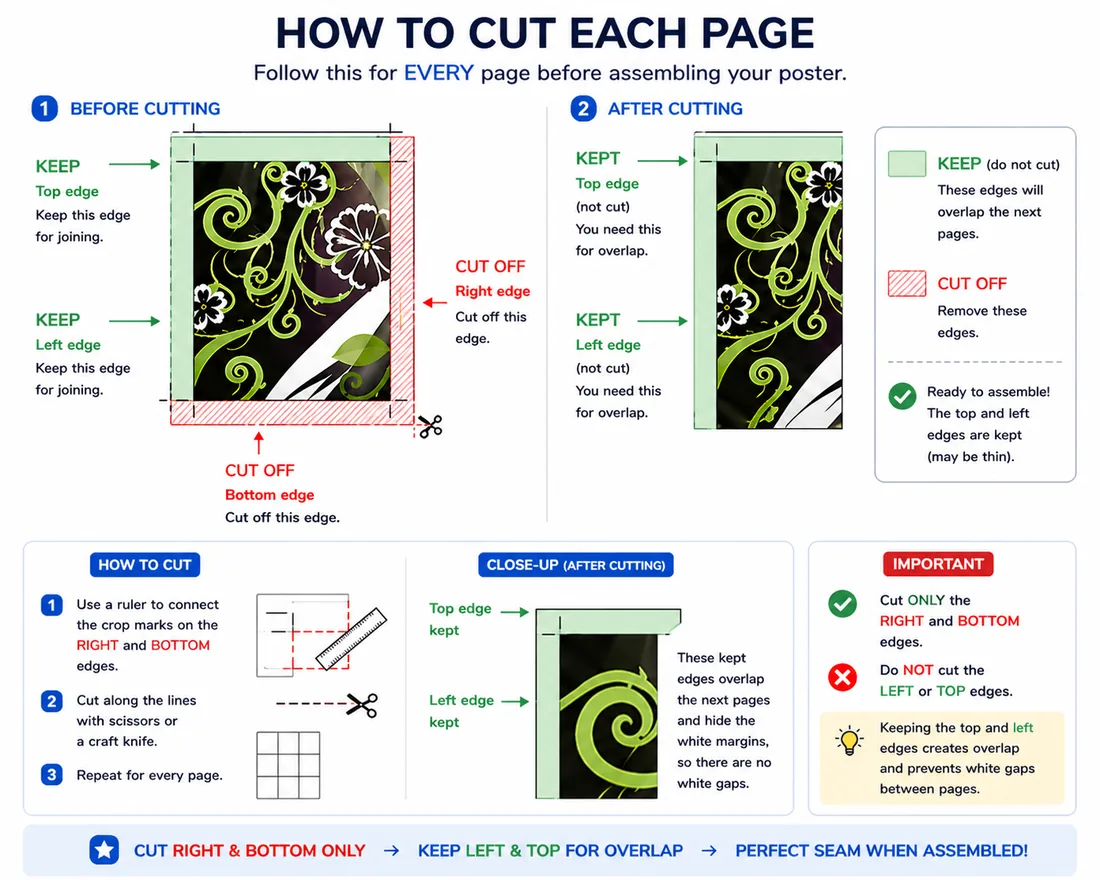
The biggest mistake beginners make is cutting the white border off all four sides of every sheet. To create strong overlapping seams:
- Trim along crop marks on only the right edge and bottom edge of each page.
- Leave the top edge and left edge completely intact to serve as underlay glue tabs.
- Use a steel straightedge ruler and a fresh utility craft blade on a self-healing cutting mat for razor-straight cuts.
4. Overlap, Align, and Secure Seams
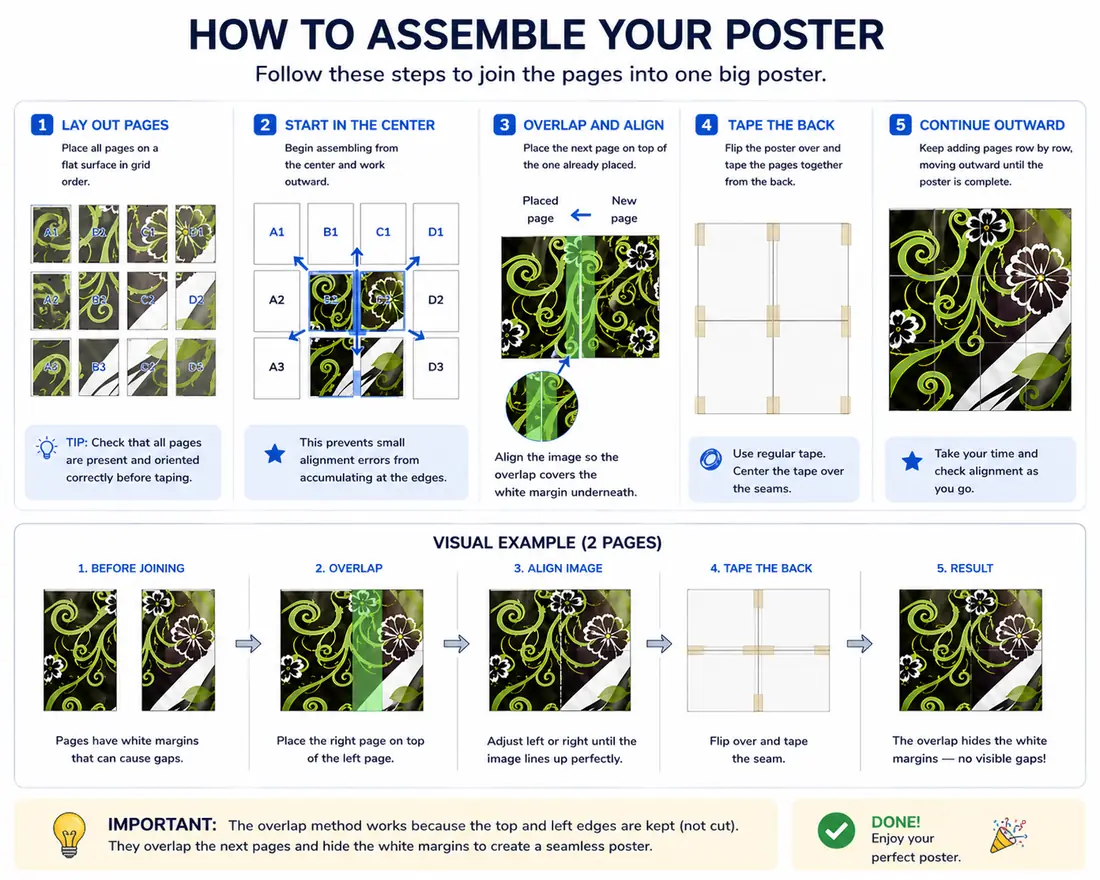
Step 1: Lay Out Rows
Lay out the first row (A1 to D1). Place page B1 overlapping the right tab of A1, lining up the image content perfectly.
Step 2: Sight the Graphic Alignment
Do not line up the paper edges; line up the printed halftone dots or photo lines. Once aligned, hold firmly with finger pressure or painter's tape.
Step 3: Tape from the Reverse Side
Turn the aligned seam over and apply matte invisible tape or artist tape along the rear joint. Burnish the tape flat with your thumbnail.
💡 Key Concept: Seamless Overlap
The white unprinted margin of the left page hides underneath the cut edge of the right page. When positioned accurately, paper borders vanish and the multi-sheet mosaic reads as a single continuous mural.
Common Assembly Mistakes to Avoid
- Cutting all four edges instead of only the right and bottom edges, which destroys overlap margin slack.
- Printing with "Fit to page" or hardware auto-scaling enabled, shrinking tiles by 3% to 7%.
- Ignoring A1, B1 page position labels and assembling sheets out of sequential coordinate order.
- Trying to align blank paper margins first instead of visually matching the printed halftone image itself.
- Using high-moisture water-based school glue which wrinkles lightweight printer paper.
How to Prevent Blurry or Pixelated Poster Prints
If your printed poster looks soft or blurry, it is usually because the digital file was stretched beyond its natural resolution without vector dot rasterization:
- Use Halftone Vector Dot Styling: Halftone transforms continuous tones into clean geometric vector dots. Up close it looks like cool Roy Lichtenstein pop-art; from 2 meters away it blends into a photographic image.
- Enhance Source Contrast Before Printing: High-contrast portraits, graphic silhouettes, and bold typography render the crispest dots. Increase black levels in your photo app prior to uploading.
- Want Smooth Photos Without Dots? If you prefer continuous photographic gradients without any halftone dots, use our dedicated Block Poster Maker tool.
- Looking for Wall Decor Ideas? Explore our Free Wall Art Generator for sizing calculations using the 2/3 interior design rule.
- Software History & Alternatives: Read The Rasterbator Guide & Alternative to discover how browser-based WebAssembly replaced 2004 desktop Java tools.
Paper Selection and Hardware Print Settings
Selecting suitable paper stock ensures your multi-page poster stays flat against the wall without curling from wet printer ink:
- Standard Copy Paper (75–80 gsm): Great for temporary dorm posters, school banners, and draft tests. However, high-density black ink can make light copy paper slightly wavy while drying.
- Premium Bright White Matte Paper (90–120 gsm): The golden standard for multi-sheet wall murals. It absorbs ink sharply without rippling and offers rigidity that makes seam alignment easy.
- Disable Economy & Draft Modes: In your printer properties, choose "Standard" or "High Quality" on Matte paper. Draft modes lay down sparse ink, leaving halftone dots faded.
- 15-Minute Ink Curing Time: Allow freshly printed inkjet pages to dry for 10–15 minutes before cutting. Wet ink smudges easily against metal rulers.
Wall Mounting Without Damaging Paint
- Blue Painter's Tape: Safe for standard painted drywall and rental apartments. Apply loops on the back of every corner and along horizontal row seams.
- Removable Poster Putty (Blu-Tack): Press pea-sized balls of putty onto the rear seam intersections. Holds securely without peeling paint or leaving greasy stains.
- Foam Board Mounting: For exhibition displays, spray repositionable craft adhesive onto a large foam core sheet and smooth your pre-taped paper poster on top with a felt squeegee.